Submitting a Create Assignment
This assignment requires you to create a VoiceThread by uploading at least one slide and recording comments on it.
Computer
- Sign in to your course.
- Click on the VoiceThread assignment link set up by your instructor.
- Click the yellow “Start Assignment” button on the right.
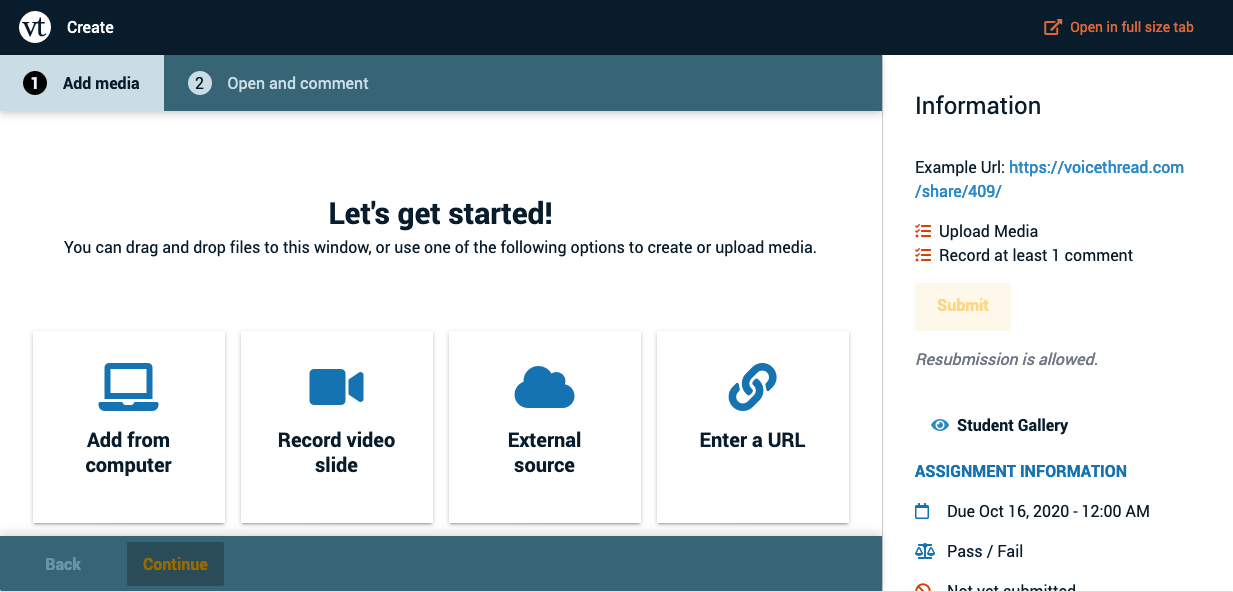
- To start building a new VoiceThread, click on the source from which you would like to upload or import media, and wait for that media to process. Click “Continue” at the bottom of the screen to go to the commenting options.
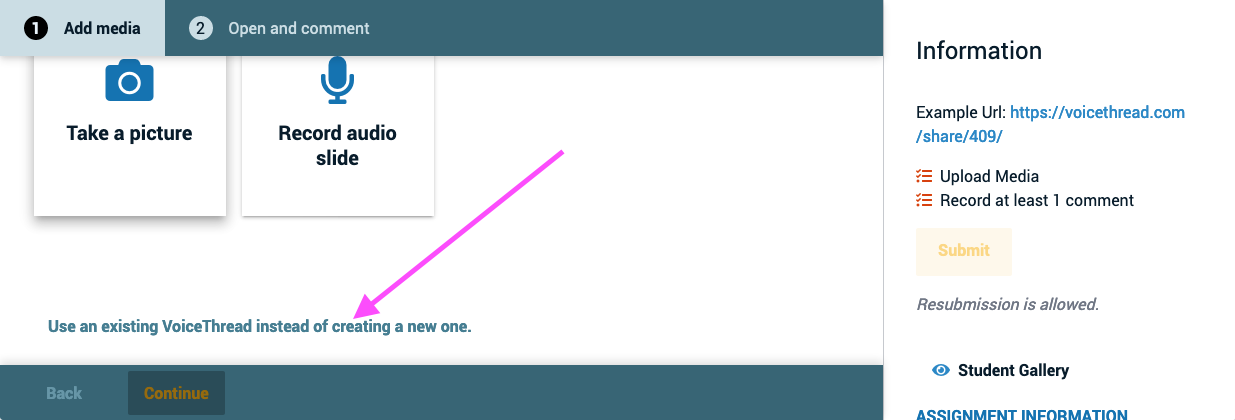
If you have already created the VoiceThread you want to use, scroll to the bottom of the page and click “Use an existing VoiceThread instead of creating a new one.” This will take you to a page where you can see all of your VoiceThreads, and you can click on one to use it. Click “Continue” at the bottom of the screen to go to the editing area in case you need to add more slides, and then click “Continue” again to go to the commenting options.
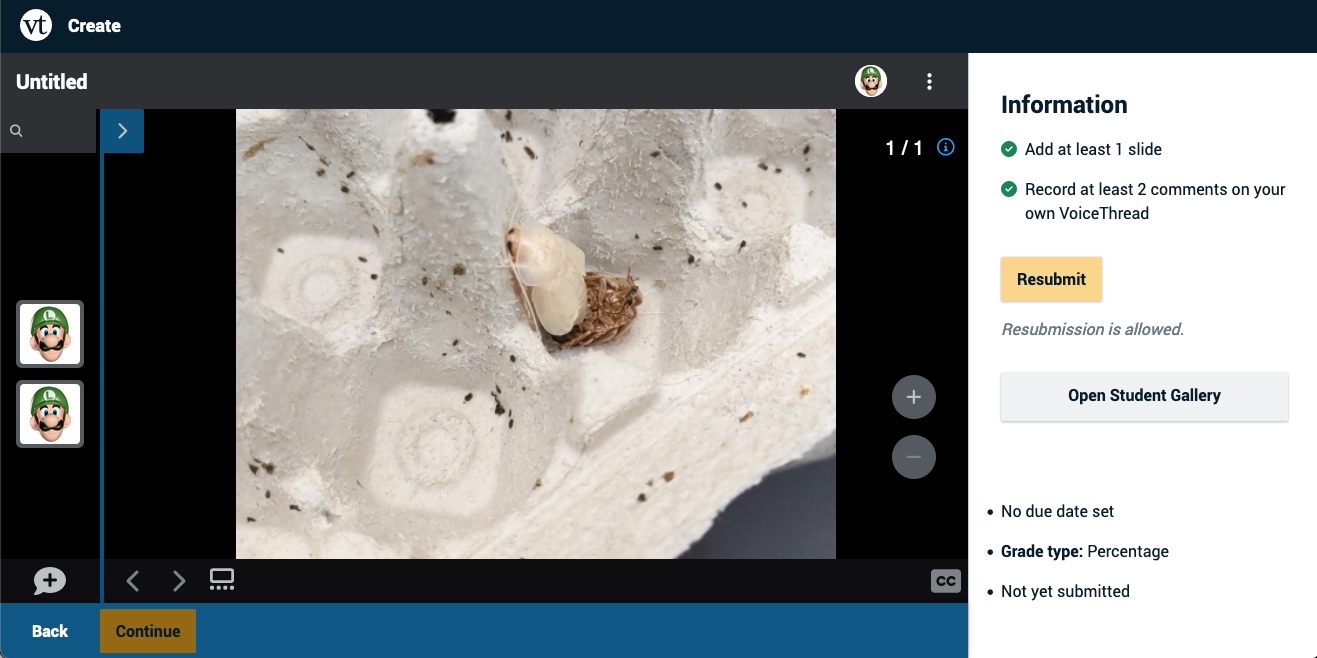
- Once you have met the requirements for the assignment, you will see blue checkmarks next to each item in your to-do list. Click the yellow “Submit” button on the right to complete your assignment.
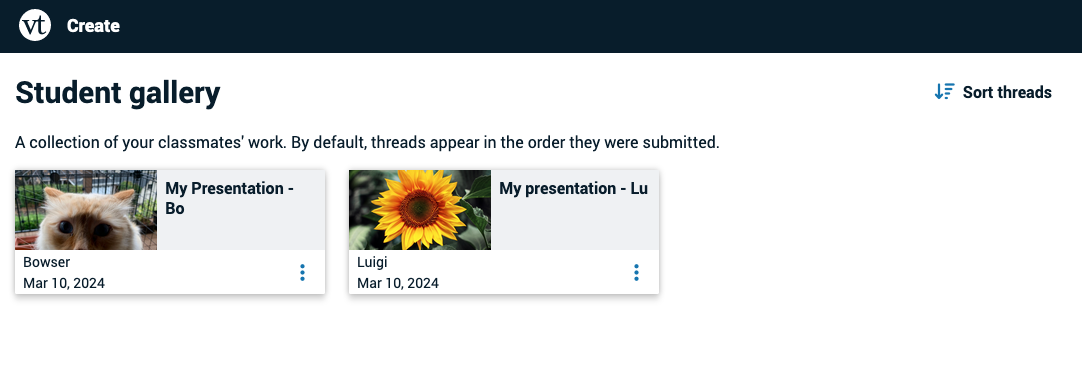
- If your instructor would like you to view and comment on your classmates’ submissions, click on the “Student Gallery” button beneath the Submit button. This will open a new browser tab and take you to a page where you can view all of your classmates’ work for this assignment.
Errors
While assignments should work seamlessly most of the time, you might occasionally encounter an error message that you need help resolving. Some of the most common ones are detailed here.
This assignment is currently being edited by your instructor.
This means your instructor currently has the assignment in edit mode. You won’t be able to work on it until they publish the assignment again. Please reach out to them if you continue to see this message for a prolonged period.